In architecture, there’s the creative rush of design, and then there’s the documentation marathon. The new Glyph AI Assistant automates documentation tasks, leaving you more time to focus on designing.
Key takeaways:
-
Instead of navigating complex menus or manually setting up scripts, you can simply type commands and Glyph handles the execution.
- The AI Assistant automates repetitive tasks in Revit such as generating elevations for specific rooms, mass-tagging doors, windows, and casework, and placing accurate strings across interior and exterior elements.
- Beyond execution, you can ask the AI Assistant technical questions about how to set up specific workflows, bypassing the need to dig through documentation of help files.
What if you could automate documentation tasks just by typing what you need in plain English? The new Glyph’s AI Assistant does just that.
Glyph is the smart automation plugin for Revit. Its new built-in AI Assistant turns plain-language instructions into real actions, helping you produce construction documents faster, more accurately, and with far fewer clicks.
What is Glyph’s AI Assistant?
Glyph’s AI Assistant automates repetitive documentation tasks in Revit, such as view creation, tagging, dimensioning, and sheet packing, through predefined “tasks and bundles” that handle much of the manual work.
The AI Assistant adds a new layer. Instead of searching for the right task or manually setting things up, you describe what you want. Glyph then interprets your request and executes it inside Revit.
What does Glyph’s AI Assistant actually automate?
Glyph’s AI Assistant automates tasks such as view creation, dimensioning, and tagging. At its core, the AI Assistant uses GPT-style language to translate your words into precise automation within Revit. This allows the assistant to handle the following tasks:
- Automating view creation
“Create elevations of rooms 103 through 107.”
No manual placement of elevation markers required. - Automating dimensioning
“Dimension all interior walls in the active view.”
Accurate dimensions placed without painstaking manual work. - Automating tagging
“Tag all doors and windows in this view.”
The right elements tagged based on context.
You focus on what needs to happen. Glyph handles the execution.
Learn, create, and run—all with AI
The AI Assistant isn’t just for execution. It’s also a knowledge buddy:
Learn Glyph
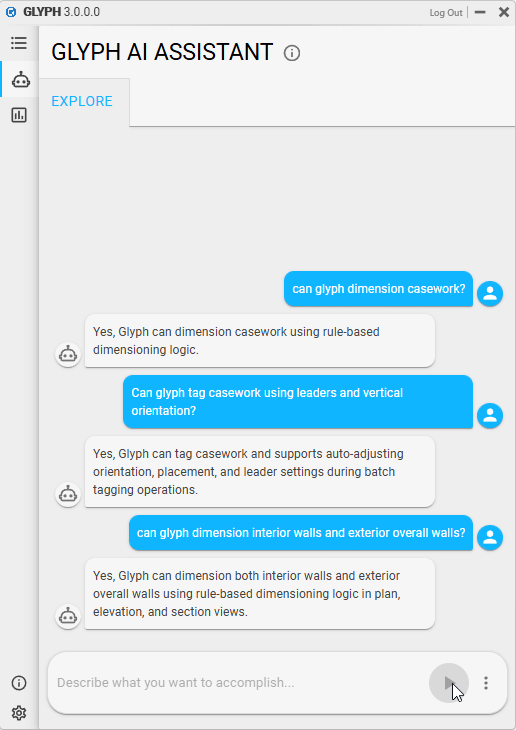
Get useful answers without digging through docs by asking questions like:
- What does this task do?
- How do I set up XYZ workflow?
- Can Glyph tag casework and walls with leaders?
Run tasks instantly
If you already know what you want done, the assistant can pick the elements and run workflows on them for you. It takes your plain-language prompt, interprets it, and immediately gets to work.
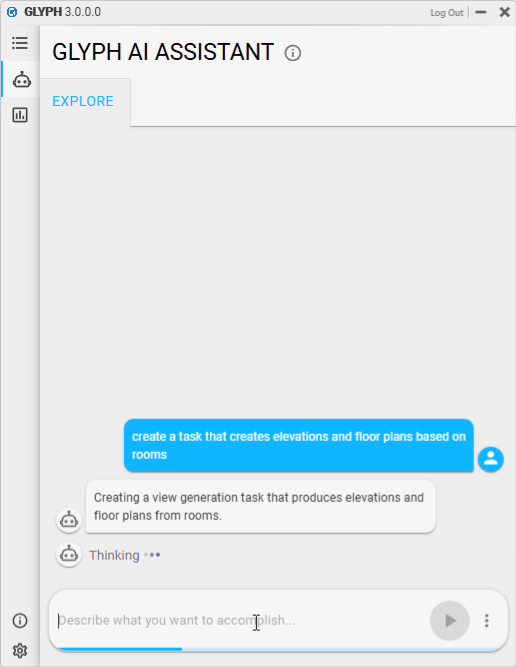
Create new tasks & bundles
You can also define new automation workflows from scratch without immediately running them. Describe what you want automated, and Glyph will build the task or “bundle” (a group of tasks) that you can customize later.
Why this matters for AEC teams
In the architecture, engineering, and construction world, documentation is essential but painfully repetitive. Glyph already cuts down this manual work by automating view creation, tagging, dimensioning, and more. The AI Assistant takes that to the next level by letting you control all of that with language, freeing up time for you to actually design.
Here’s what you get:
- Fewer clicks, faster workflows — talk to Glyph, let it act.
- Less manual draining work — no more placing every dimension or tag by hand.
- More consistent output — keep standards tight across projects.
- A smoother learning curve — newbies and pros alike can bypass menus and deep UI knowledge.
Your data stays yours
We understand that project data in AEC environments is highly sensitive. That’s why Glyph is designed with privacy at its core.
- No model data is sent to the cloud — Glyph does not transmit element names, project names, geometry, parameters, or any other model information.
- All model processing happens locally.
- Only your text prompt is sent to our servers — just the instruction you type, with no model context or project metadata attached.
- No project content is stored — we do not retain your model data.
Ready to try Glyph’s AI Assistant?
If you’re curious what it’s like to type a documentation request and watch it happen, download Glyph and give it a try.
FAQs
How does Glyph’s AI Assistant fit into a Revit team workflow with architects, drafters, and QA reviewers?
Glyph’s AI Assistant fits into a Revit team workflow by reallocating their time to higher-value tasks. Architects can iterate faster by seeing documented views earlier in the design phase; drafters can cut hours of manual labor by automating repetitive sheet setup and annotation tasks; and QA reviewers can focus on high-level decision coordination.
Can Glyph’s AI Assistant help a BIM manager enforce office documentation standards across multiple projects?
Glyph’s AI Assistant can help a BIM manager enforce office documentation standards, as one of its strongest features is its ability to read and respect your firm’s source of truth. For example, connecting it to your office templates ensures that every automated tag, dimension, and sheet follows your specific graphic standards.
What happens if Glyph’s AI Assistant misunderstands my prompt—can I review or undo changes easily?
If Glyph’s AI Assistant misunderstands your prompt, you can chat with it to refine the results. Accuracy is the priority, but human oversight is the final step. Before changes are committed to the model, Glyph will provide a visual preview of the actions it is about to take.